Cases
Cases
Create, find and work security cases, from the first alert to the closing note.
A case is one incident or investigation. It has a title, severity, status, owner, tags, a description, and everything the team gathers while working it: activity, tasks, artifacts, assets, evidence, a report and an audit trail.
Finding cases
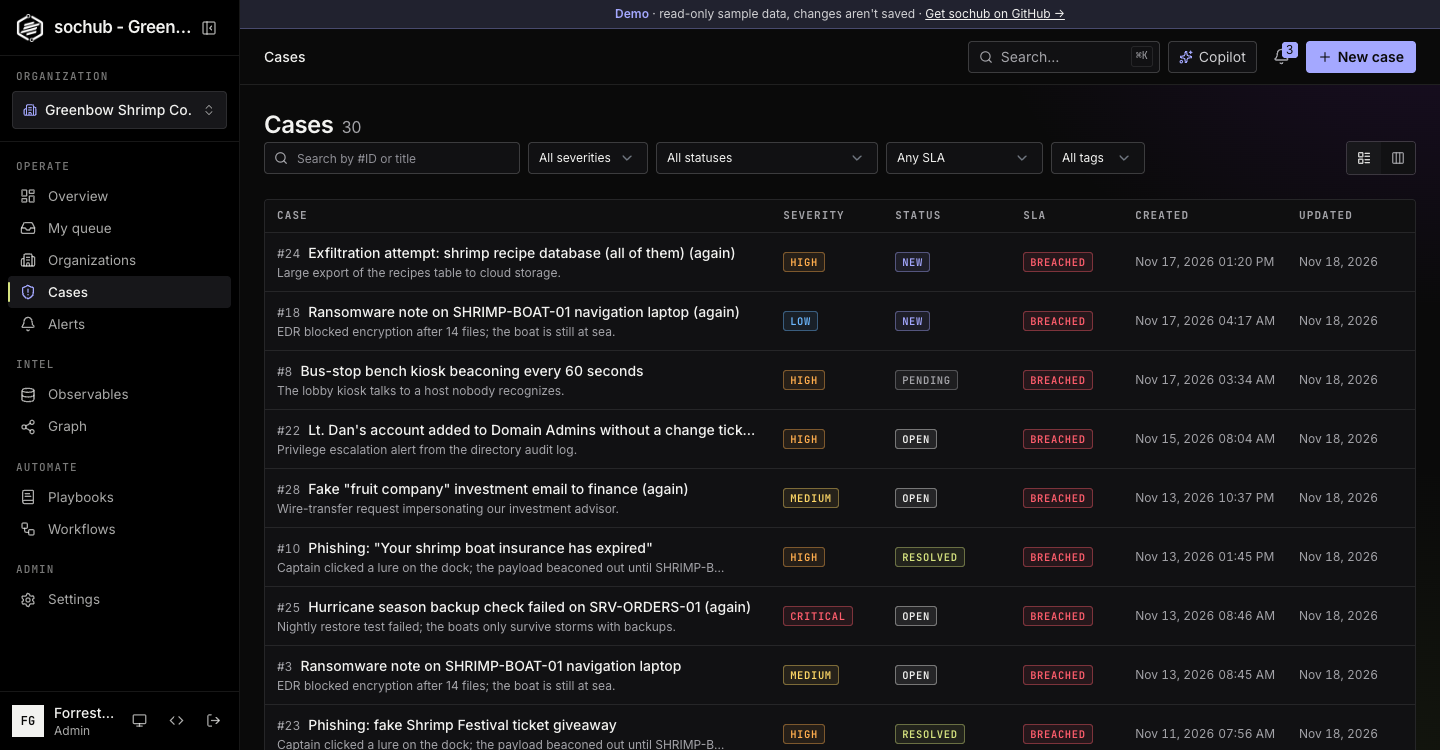
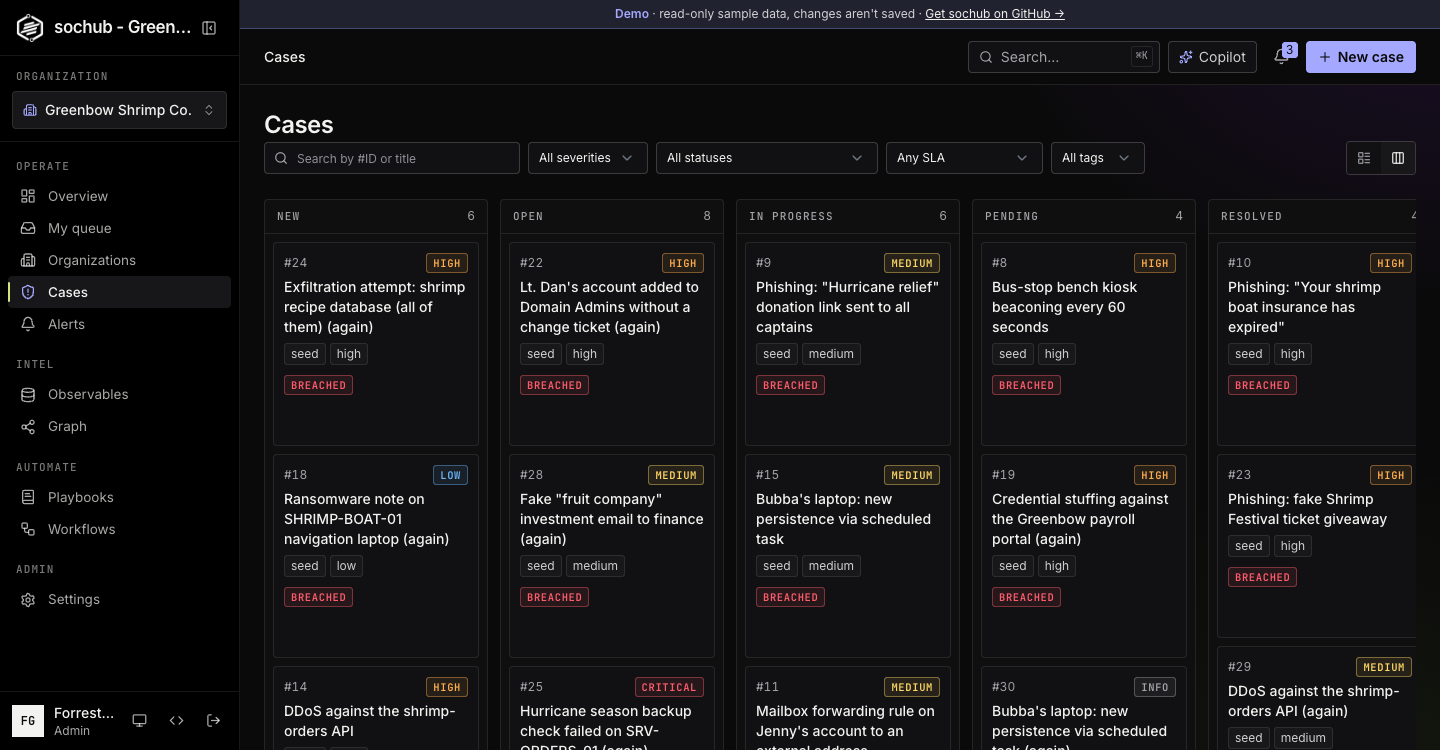
Cases shows every case of the organization as a list or a board. Filter by severity, status, SLA
state (at risk, breached) and tag, or search by title or #ID. Filters live in the URL, so a filtered view is a
link you can share. The board groups cases by status columns.
Creating a case
Use New case in the top bar. Give it a title, severity and description, and optionally start it from a playbook (its tasks are added straight away) and set when the incident started. Cases are also created by promoting alerts (see Alerts), by the Copilot (after you confirm), and by workflows.
Statuses are New → Open → In progress → Pending → Resolved → Closed. Closing asks for an outcome (false positive, true positive with or without impact, legitimate, unknown) and a closing note.
The case page
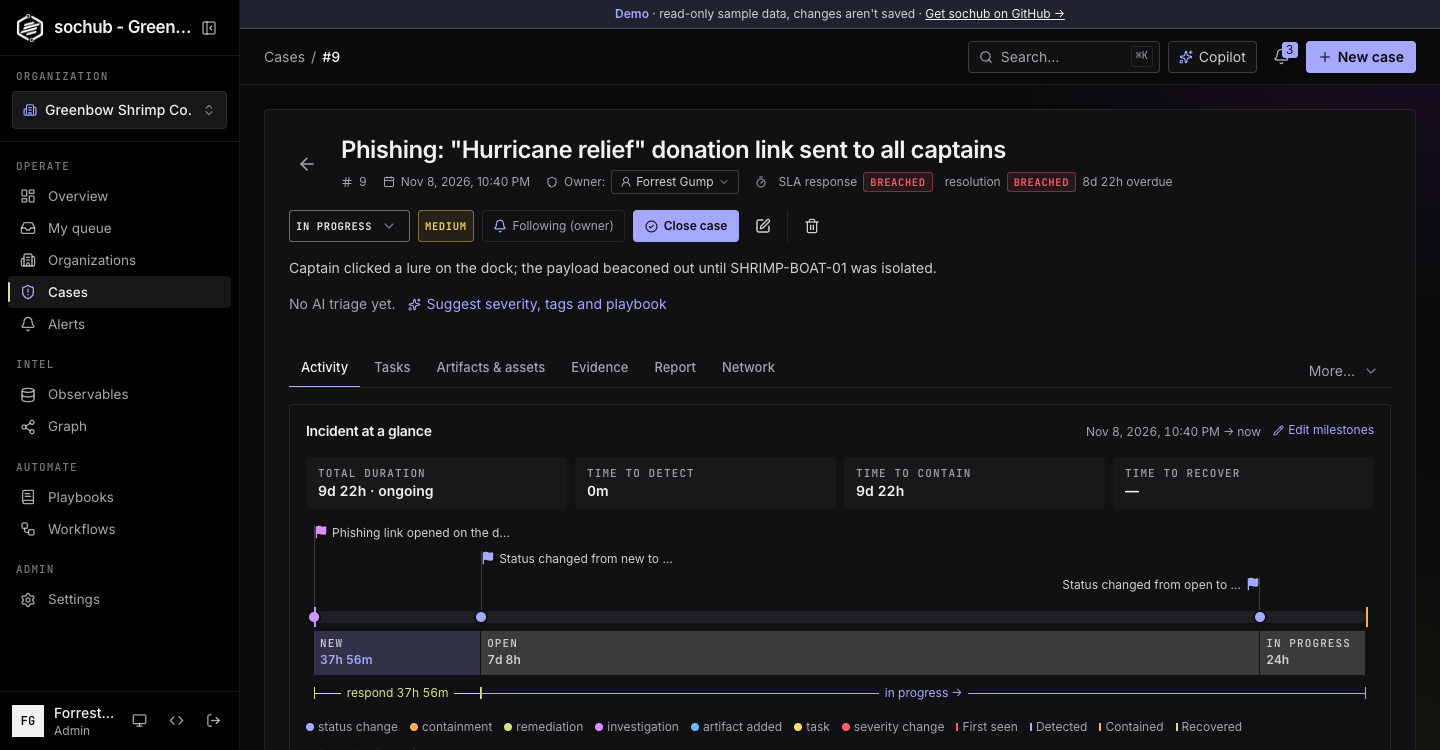
The header shows severity, status, the owner (analysts and admins reassign from the owner picker; the new owner is notified), the SLA for response and resolution, AI triage (one click asks the AI to suggest severity, tags and a playbook) and the Slack war room if there is one. The case is split into tabs:
| Tab | What it holds |
|---|---|
| Activity | The incident at a glance, then one feed of everything that happened |
| Tasks | Phase-grouped tasks from playbooks or added by hand (Playbooks and tasks) |
| Artifacts & assets | Evidence of the attacker, your affected hosts and accounts, and containment actions |
| Evidence | Uploaded files, hashed on upload |
| Report | The incident report, exported as PDF or JSON |
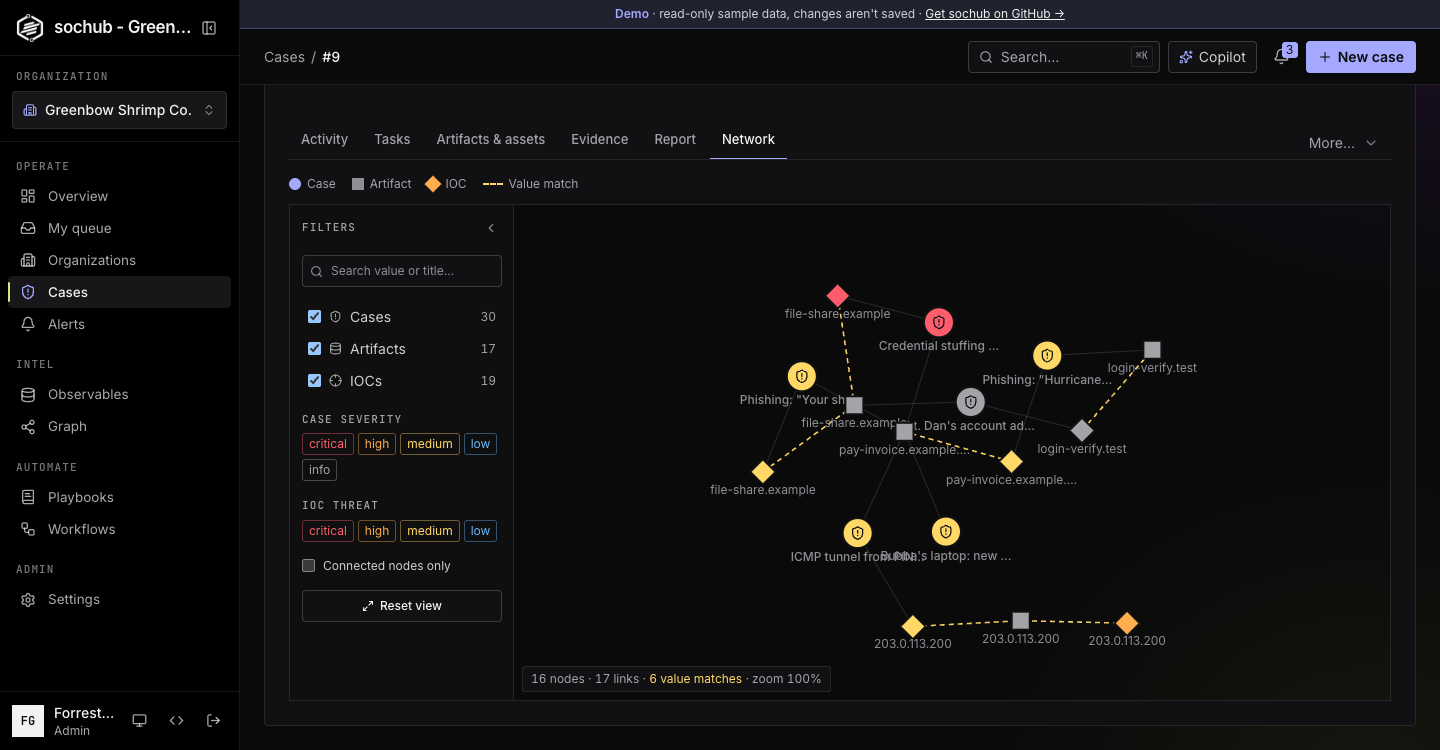
| Network | The investigation graph limited to this case |
| More → Time, Guests, Audit, Automation | Time worked, external guests, the audit trail, workflow runs on this case |
Activity
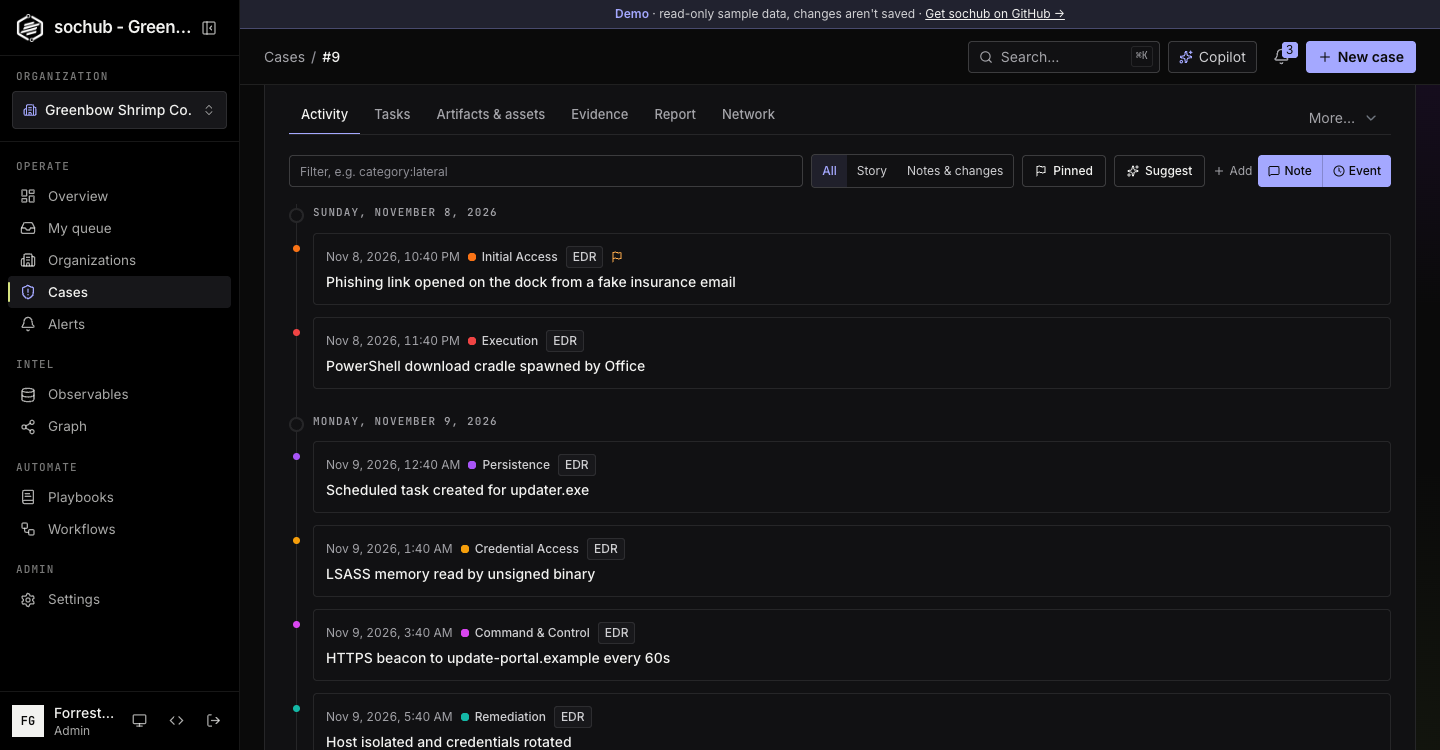
The Activity tab is one chronological feed: investigation events (dated when they happened, with an ATT&CK category), notes and comments, ticket updates, containment and system changes.
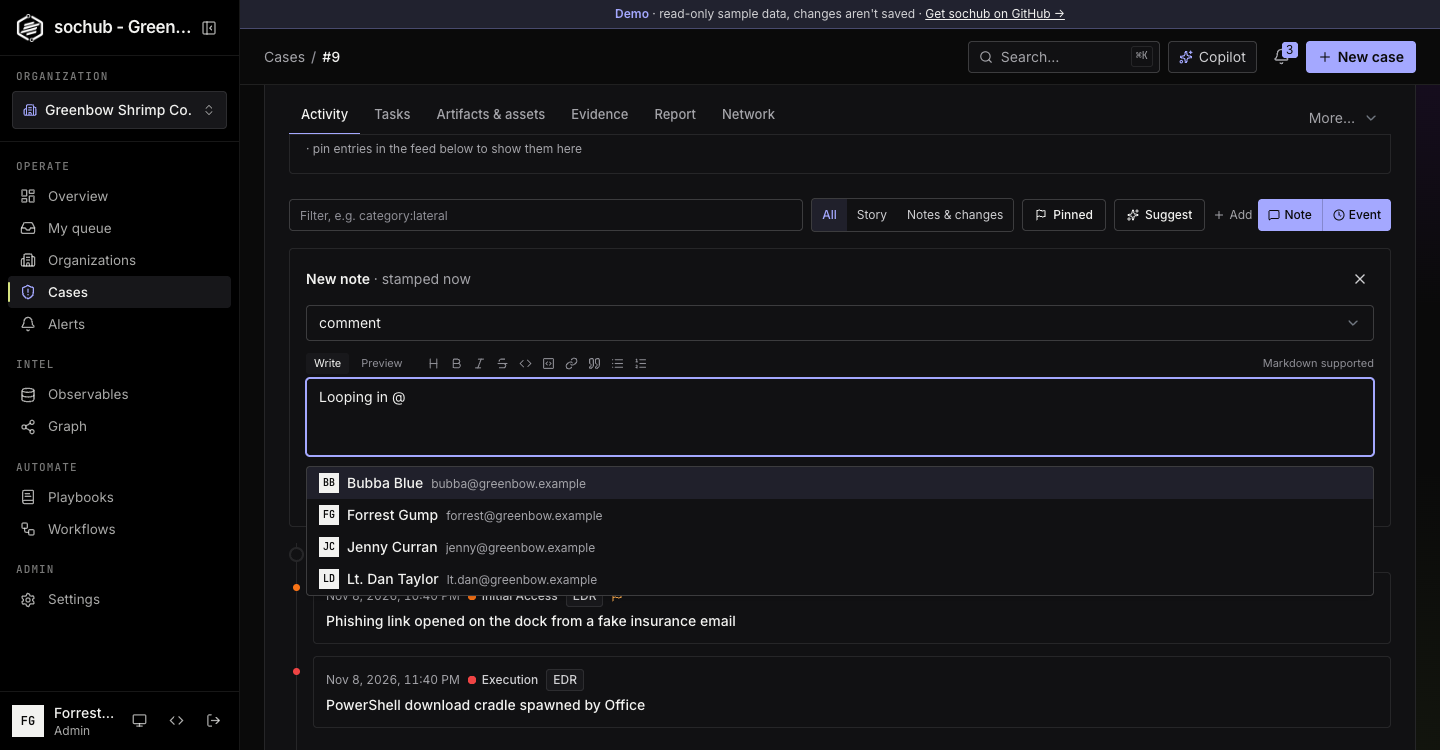
- Add note records something now; Add event records something that happened at a given time.
- Type
@to mention a teammate; they are notified and start following the case. - Filter by All, Story or Notes & changes, search by text or
category:,tag:,artifact:, or show only Pinned entries. Export the feed as CSV. - Suggest drafts investigation events from the case’s alerts and notes for you to review.
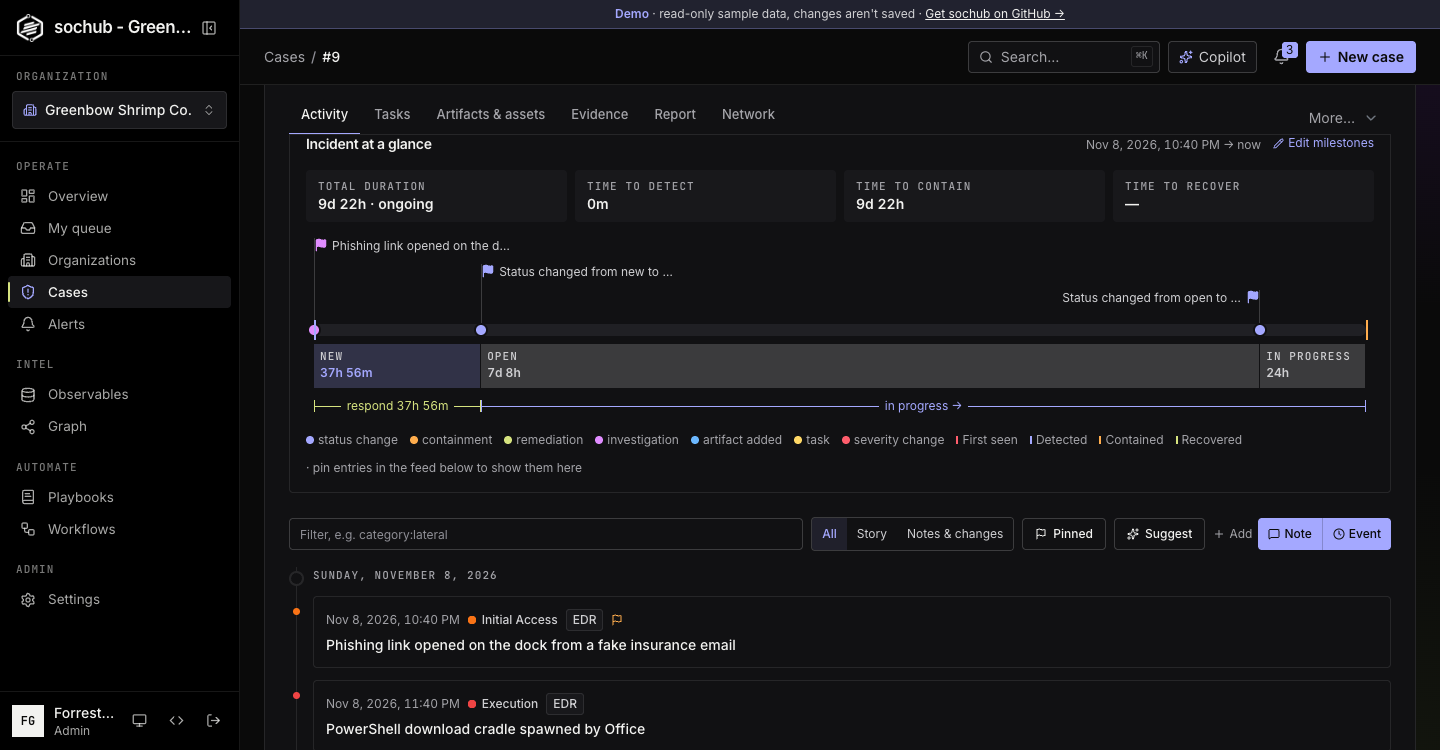
Incident at a glance and milestones
The top of the Activity tab draws the incident on one time axis: four milestones (First seen, Detected, Contained, Recovered), status phases and the entries you pinned. Each milestone is computed from case data until someone declares the exact time (from Edit milestones, the report, or an event’s Set as… menu). The glance, the report and the time-to-detect / contain / recover numbers all read the same values.
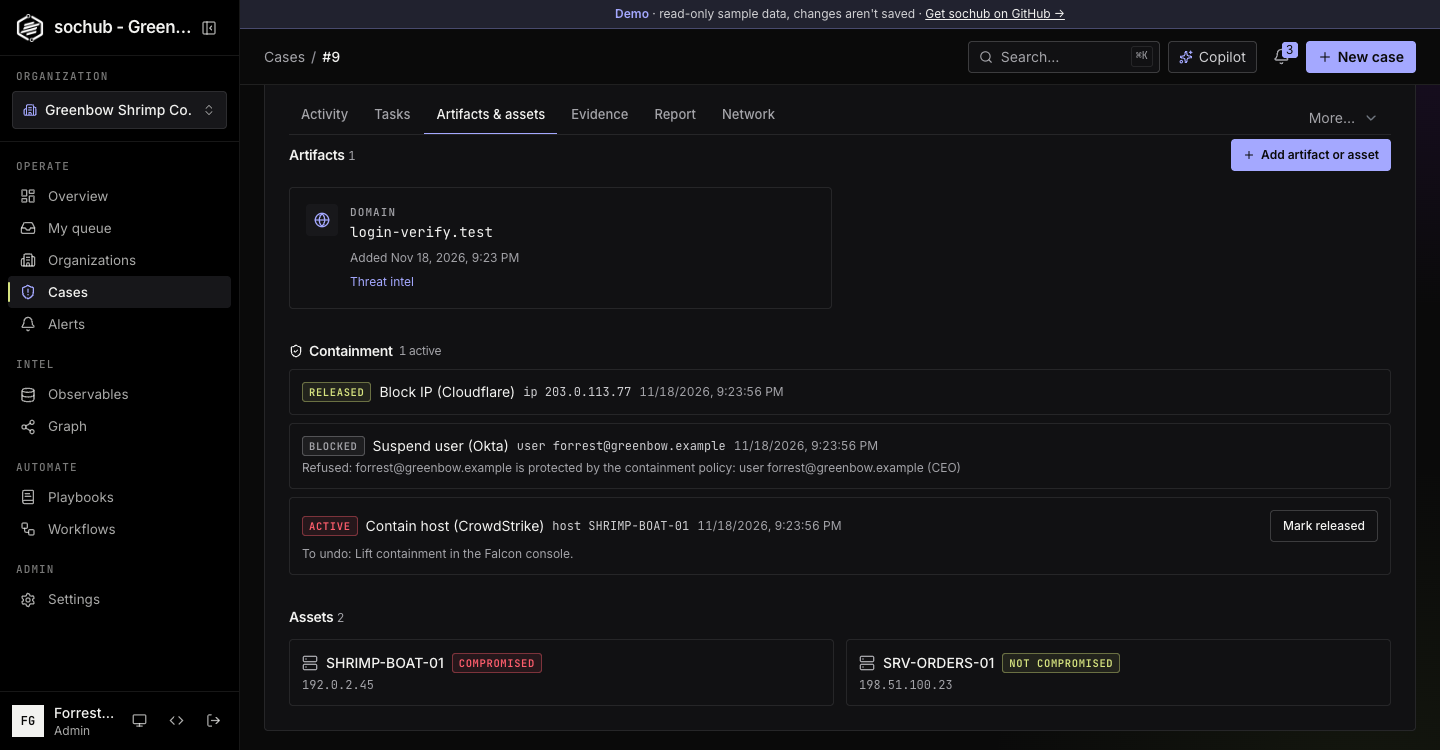
Artifacts, assets and containment
One Add dialog asks what you are adding:
- an artifact: evidence of the attacker (IP, domain, URL, hash, email, or a custom type your admin defined). Artifacts can be enriched with threat intelligence and promoted to an IOC.
- an asset: a host, account or service of yours, with its compromise status.
The Containment list shows what automations contained, refused or released, and how to undo each.
Evidence
The Evidence tab stores uploaded files. Each upload is SHA-256 hashed and added as a file_hash artifact.
Malware samples can be flagged and are then stored as a password-protected ZIP (password infected). Downloads
are never rendered in the browser, and uploads, downloads and deletes are audited.
Report
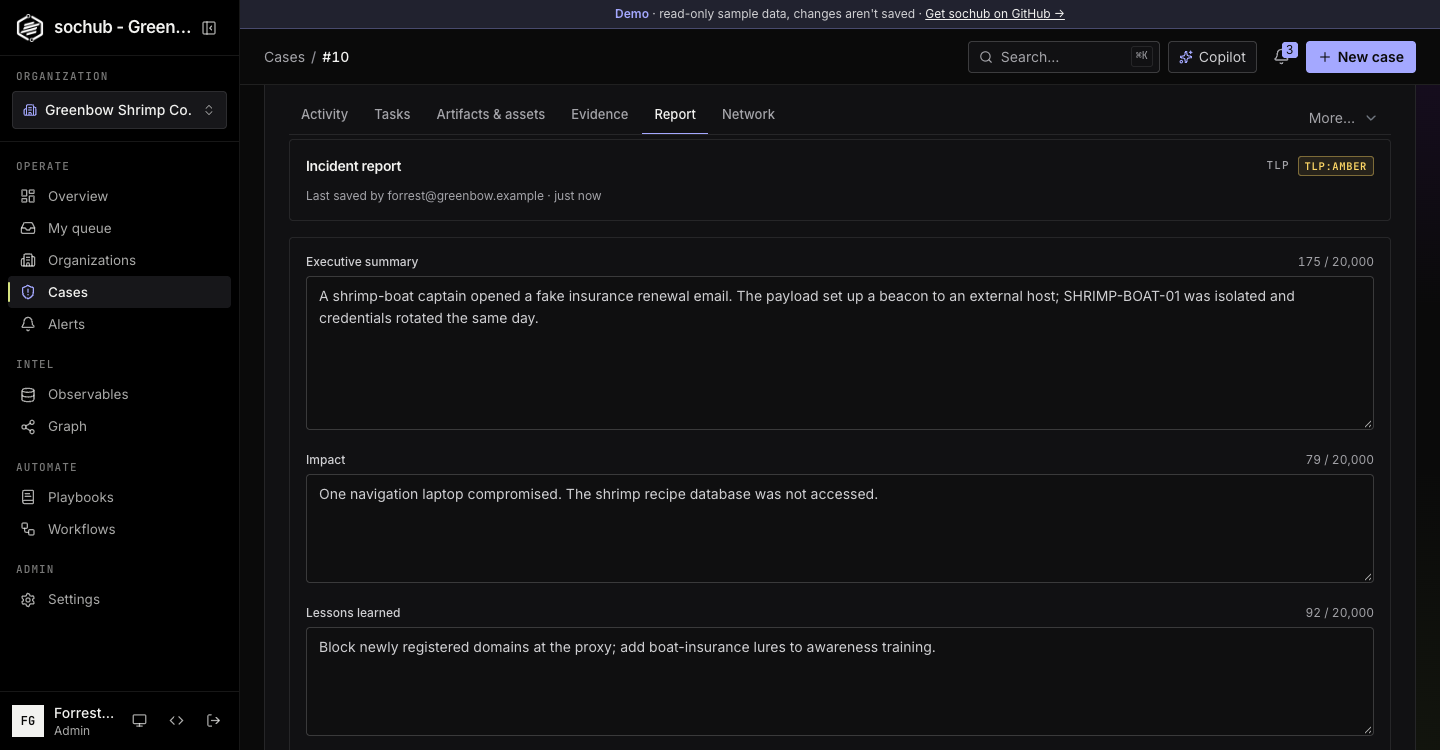
The Report tab drafts the incident report: executive summary, impact, lessons learned, milestones with time to detect, contain and recover, the timeline, indicators (defanged in the PDF), actions and evidence with hashes. Draft with AI proposes text for you to review. Export as PDF or JSON, as a short or a full report with the audit trail. The TLP marking can’t be lower than the case’s highest IOC TLP, and every export is audited with its SHA-256.
Network
The Network tab shows the investigation graph limited to this case and whatever its artifacts and IOCs connect to, two hops out. Shared indicators reveal related cases.
Time
The Time tab estimates how long analysts worked on the case: while a case is open in a visible browser tab, the app records presence once a minute and joins it into sessions. Analysts can add or correct time by hand; changes are audited.
Guests
Invite people outside the security team (HR, Legal, another department) into one case, without making them members. Guests see the title, status, severity, an analyst-written summary and only the activity entries an analyst marked Shared. A guest is a viewer or a contributor (can comment and upload evidence). Admins choose which email domains can be invited and how guests sign in.
Deleting a case
Admins can delete a case. The dialog lists what goes with it and what can’t be undone outside sochub (active containment, open tickets, a Slack war room), and asks you to type the case number. Artifacts and IOCs stay in the organization, the case’s alerts go back to the Alerts queue, and the audit log keeps a record.
Found a mistake? Edit this page or open an issue on GitHub.