Administration
Users, roles and organizations
Invite members, set roles, configure sign-in and two-factor, SLAs, custom artifact types, guests and the audit log.
Members and roles
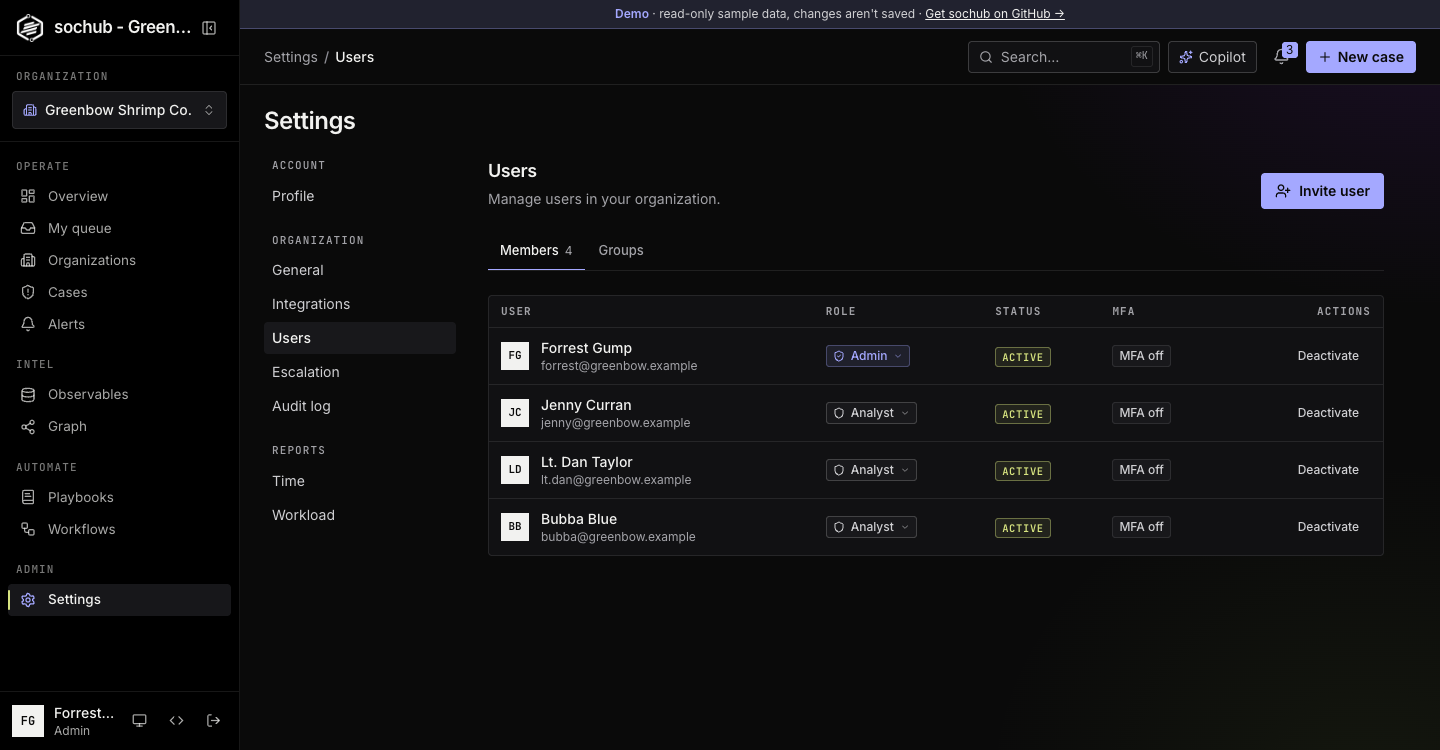
Admins invite people from Settings → Users and give each a role: admin, analyst or viewer (see Introduction). Someone who already has an account in another organization gets an invitation to accept; a new person signs up from the invitation link.
Profile and two-factor
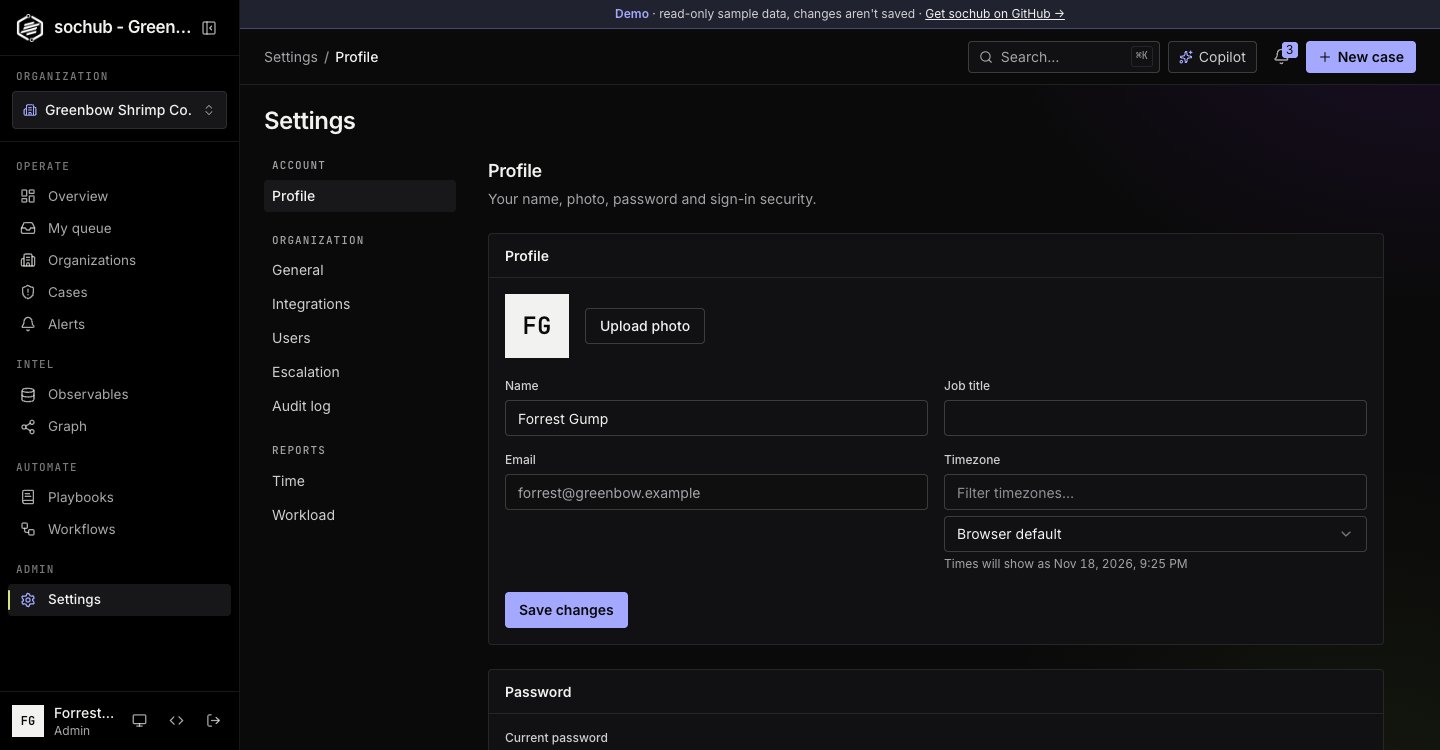
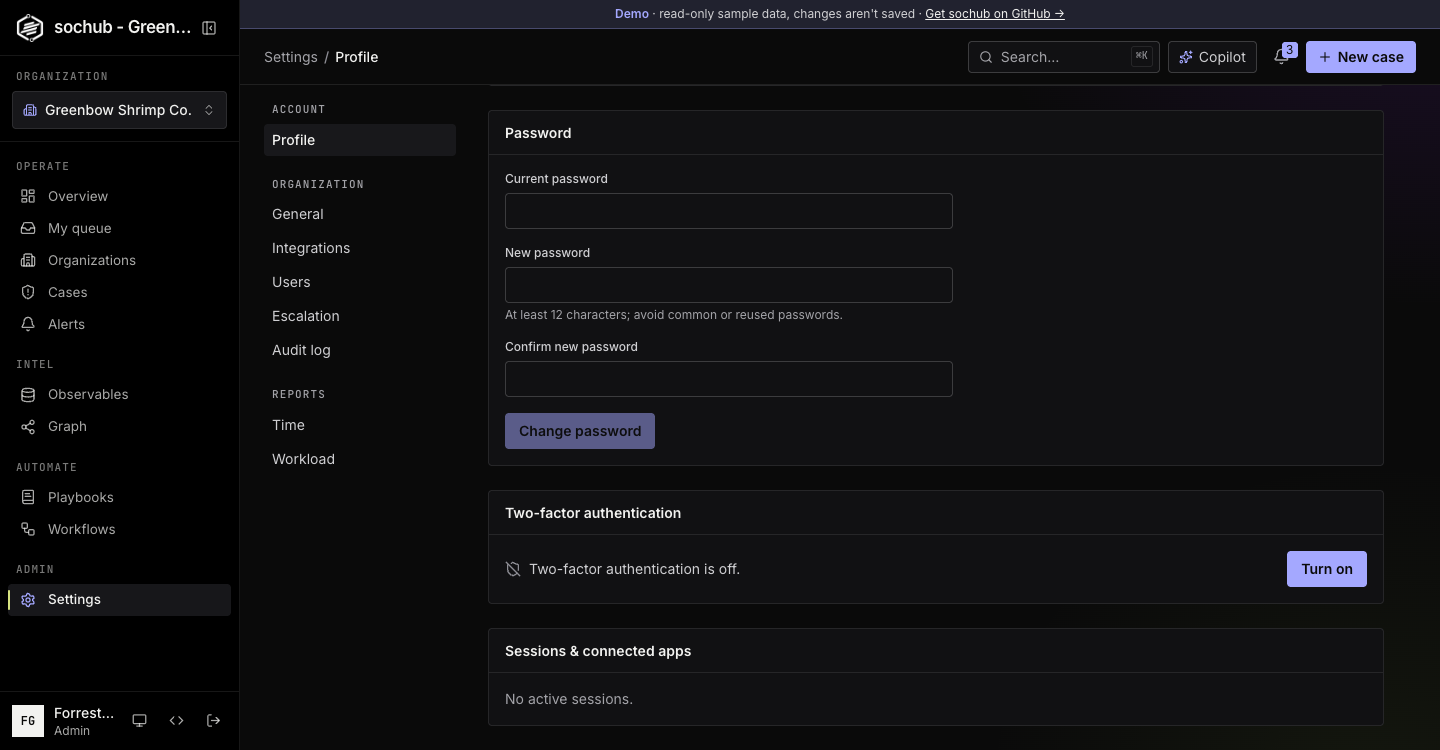
Everyone has a Profile with their name, job title, time zone and photo, a password change (which signs out other sessions) and authenticator-app two-factor sign-in. Admins can require two-factor for the organization and reset a member’s two-factor if they lose their device.
Single sign-on
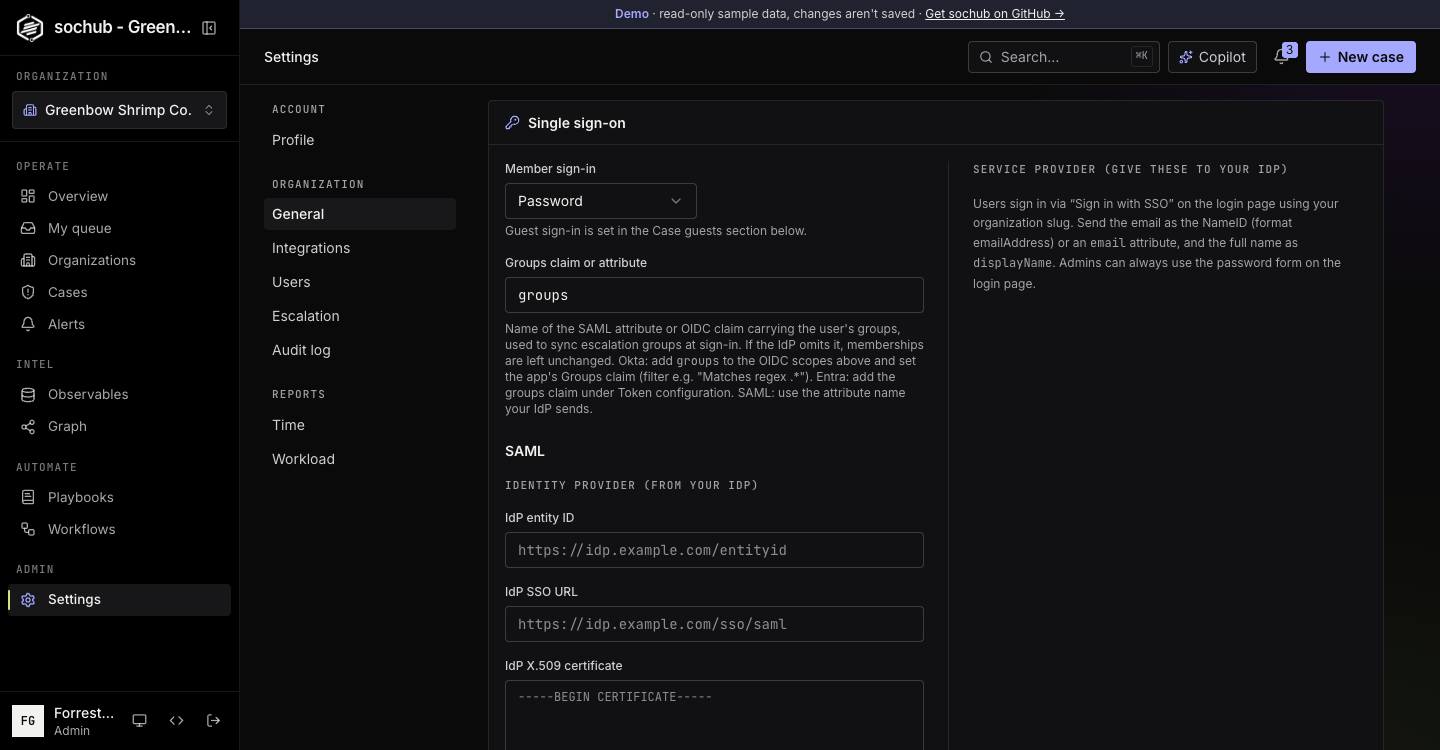
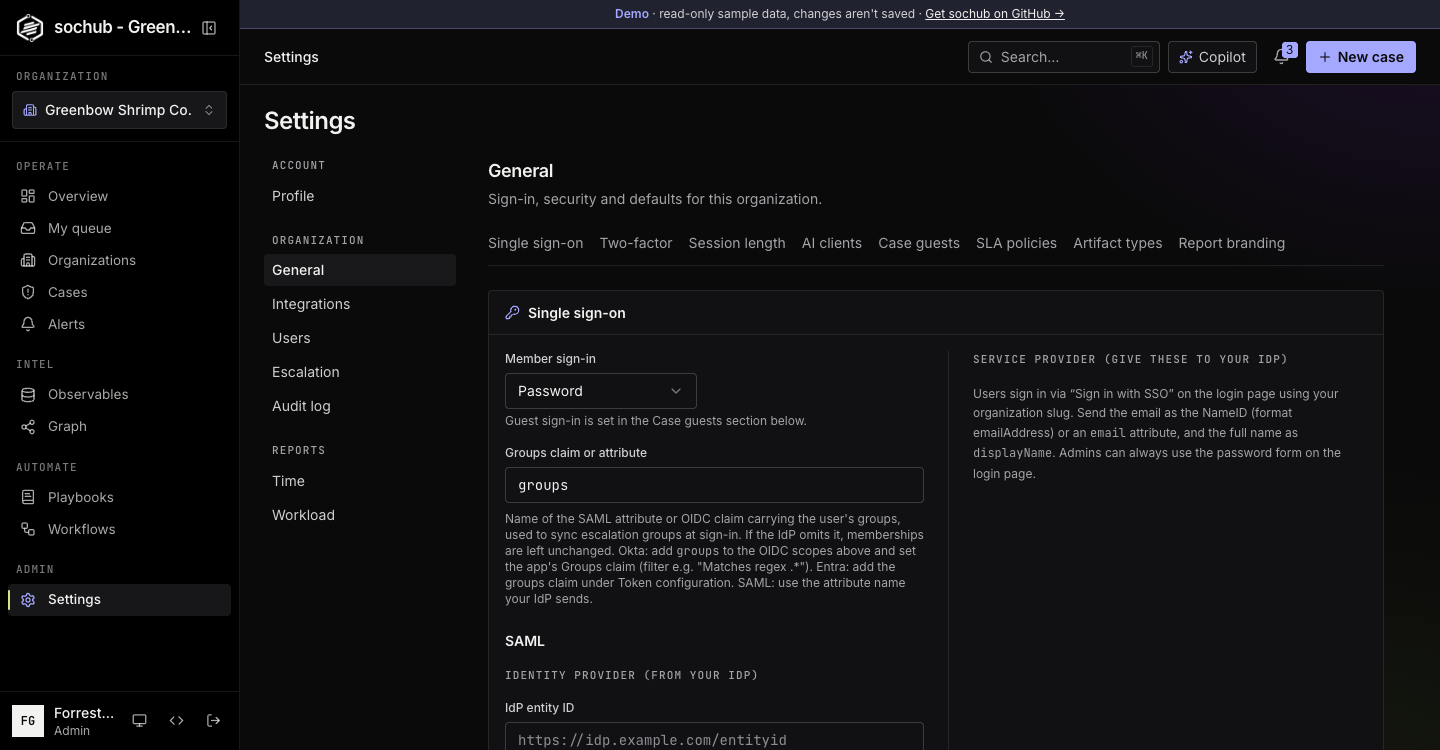
Admins connect their identity provider (Okta, Entra ID, Google and others) over SAML or OpenID Connect, with optional just-in-time creation of accounts on first sign-in. Members and guests each get a sign-in method: password, SAML or OIDC. When SSO is chosen, password sign-in is off for that audience, except an audited break-glass password for admins with two-factor.
General settings
Settings → General holds the organization’s defaults:
- Two-factor requirement and session policy.
- AI clients (MCP): whether members may connect AI clients.
- Guest access: which email domains can be invited as case guests and how guests sign in.
- SLA policies: response and resolution targets per severity, which drive the SLA badges, My queue and alerts.
- Artifact types: custom types (for example
username) with an optional alert payload field, so promoting an alert copies that value onto the case. A type can be private: hidden in the interface and visible only to workflows. - Report branding for exported reports.
Audit log
Settings → Audit log records who did what: case and alert changes, exports, sign-ins, configuration, workflow runs and changes made through AI clients. Filter by person, action and date.
Team reports
Settings → Time shows the time analysts spent on cases, and Workload shows open work per analyst.
Multiple organizations
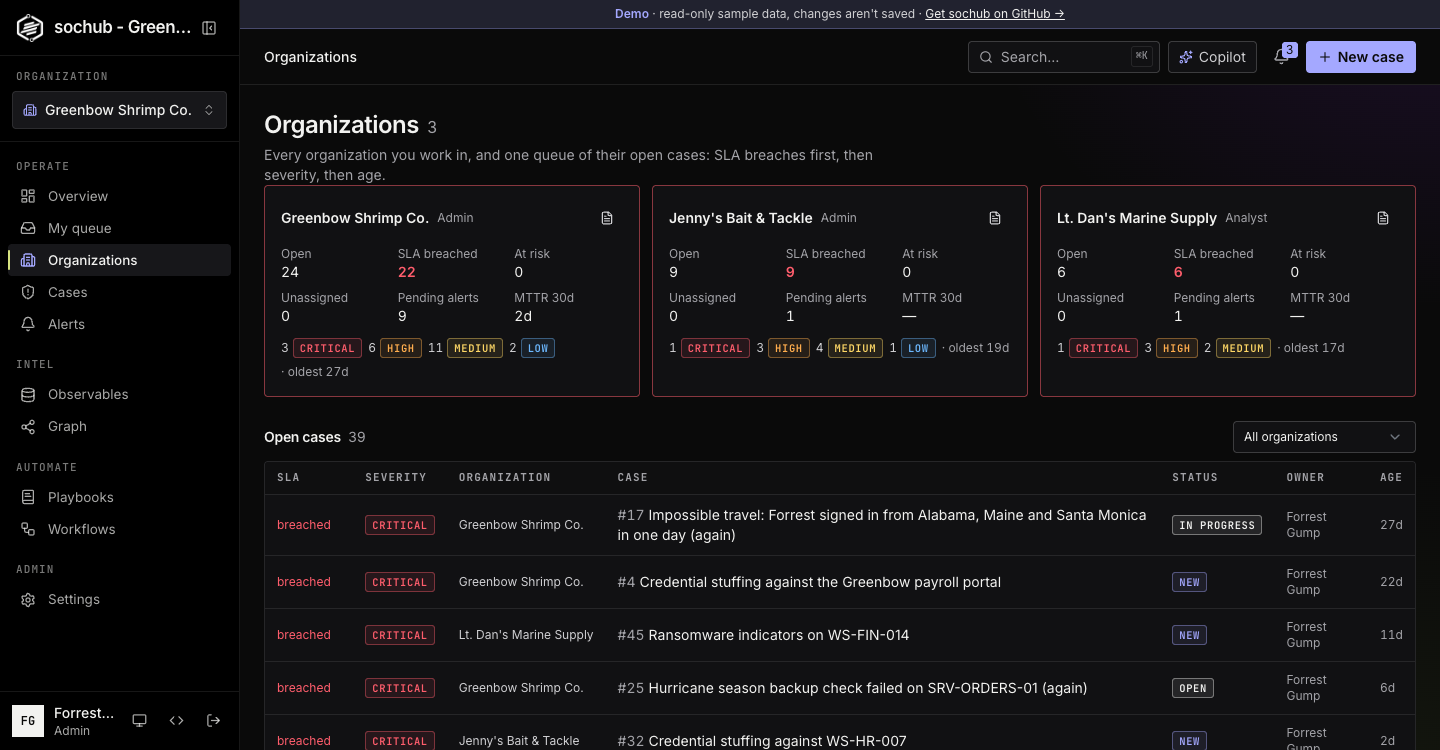
Most teams never need this. A person who belongs to more than one organization switches with the picker at the top of the sidebar and gets an Organizations page: one card per organization (open cases, SLA breached and at risk, unassigned, pending alerts, 30-day mean time to resolve) and one queue across all of them, SLA breaches first.
From a card, Summary produces a 7, 30 or 90-day summary to paste into an email or report, and that organization’s admins can have the 7-day summary emailed weekly.
Found a mistake? Edit this page or open an issue on GitHub.